> ## Documentation Index
> Fetch the complete documentation index at: https://docs.apply-bot.com/llms.txt
> Use this file to discover all available pages before exploring further.
# Configure MCP Server
> Set up Model Context Protocol for your LLM
## What is MCP?
Model Context Protocol (MCP) enables your AI assistant to interact with the Apply Bot extension, allowing it to help you fill out job applications automatically.
## Prerequisites
Before configuring MCP, make sure you have:
* Node.js installed (recommended: LTS version 24.11.0)
* Installed the Apply Bot browser extension
* An LLM that supports MCP (Cursor, Claude Desktop, Claude CLI, Gemini etc.)
## Configuration Steps
Find your LLM's MCP configuration file:
[Documentation](https://docs.cursor.com/context/model-context-protocol)
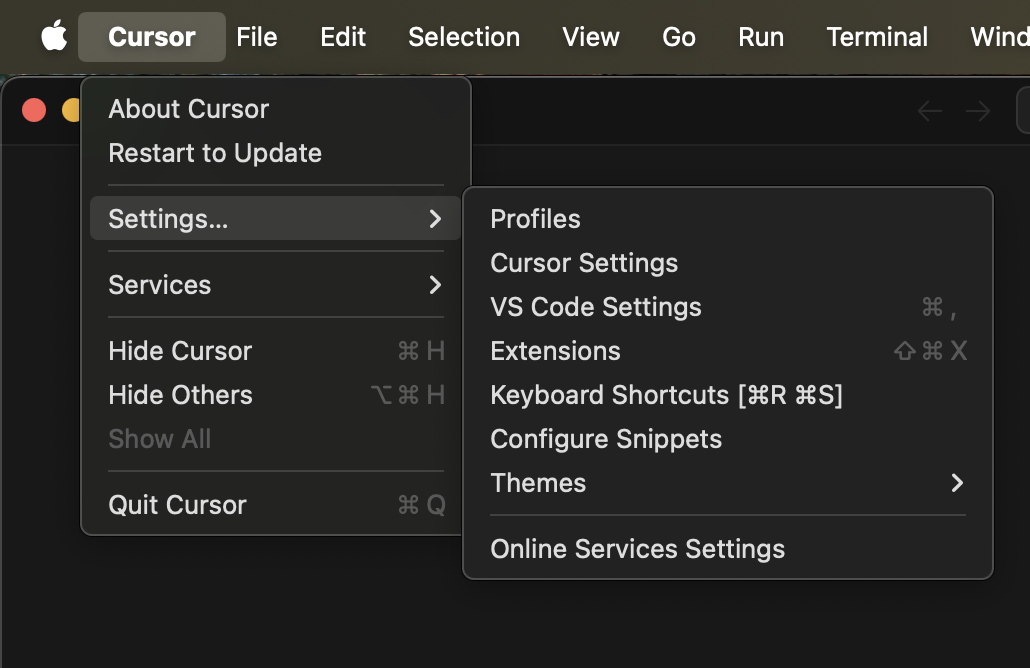
1. Click on **Cursor** menu and select **Settings...**
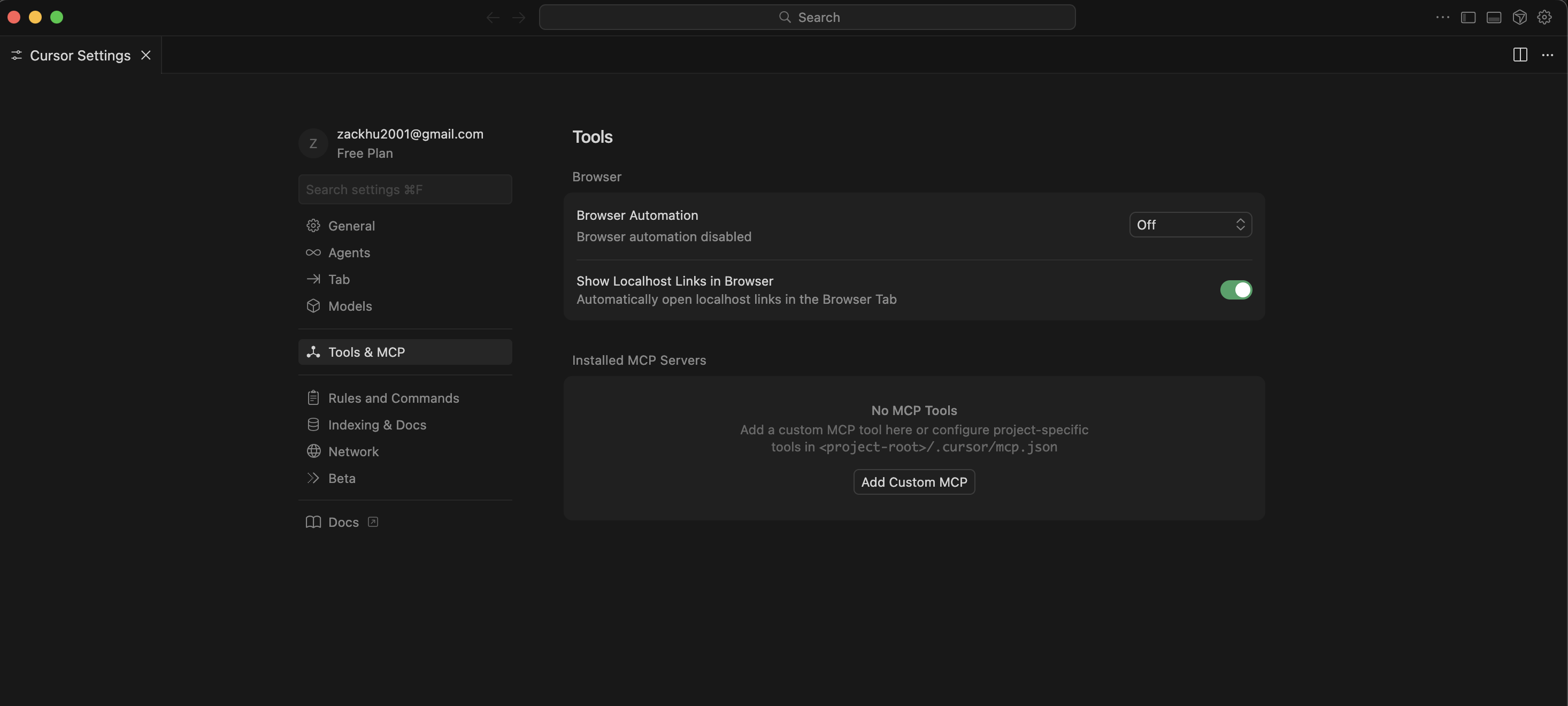
 2. Navigate to **Tools & MCP** in the left sidebar, then click **Add Custom MCP**
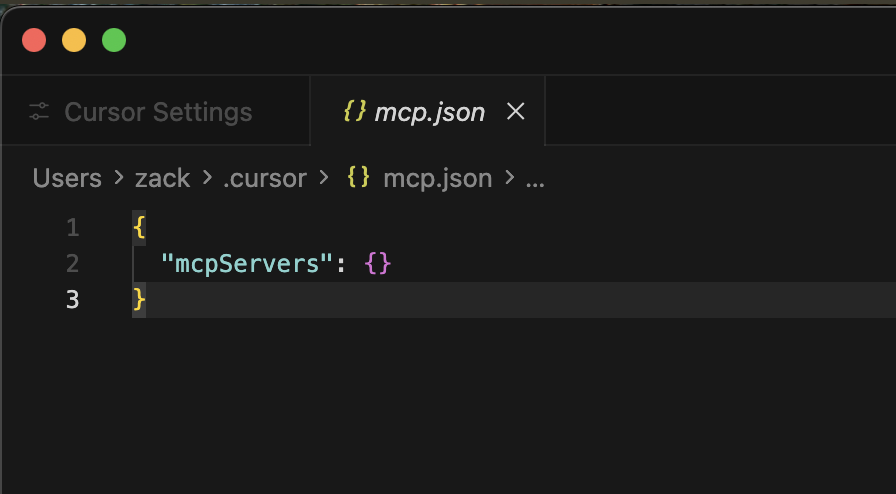
 3. Edit the global MCP configuration file at `~/.cursor/mcp.json`
* For global configuration (all projects): `~/.cursor/mcp.json`
* For project-specific configuration: `/.cursor/mcp.json`
3. Edit the global MCP configuration file at `~/.cursor/mcp.json`
* For global configuration (all projects): `~/.cursor/mcp.json`
* For project-specific configuration: `/.cursor/mcp.json`
 [Documentation](https://modelcontextprotocol.io/quickstart/user)
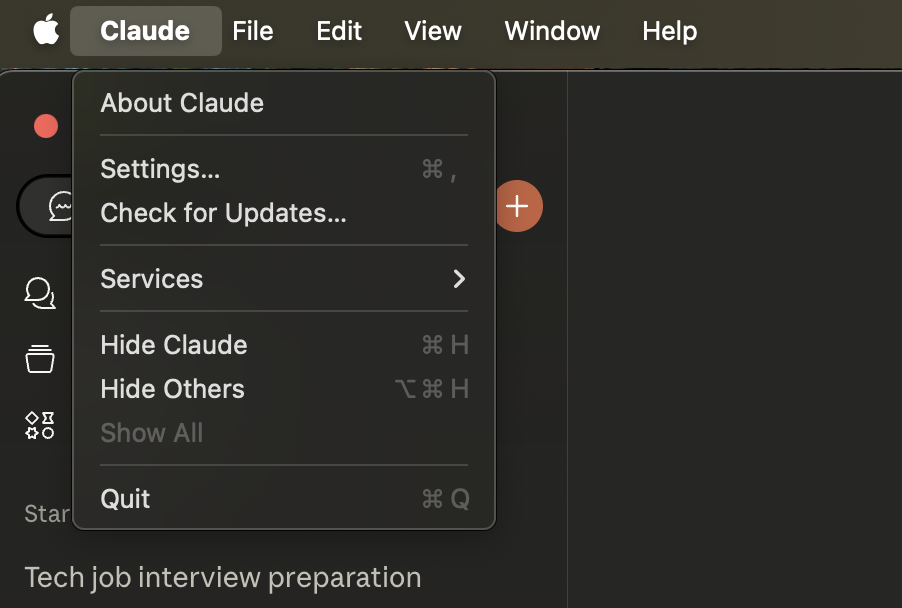
1. Click on **Claude** menu and select **Settings...**
[Documentation](https://modelcontextprotocol.io/quickstart/user)
1. Click on **Claude** menu and select **Settings...**
 2. Navigate to **Developer** in the left sidebar under Desktop app, then click **Edit Config**
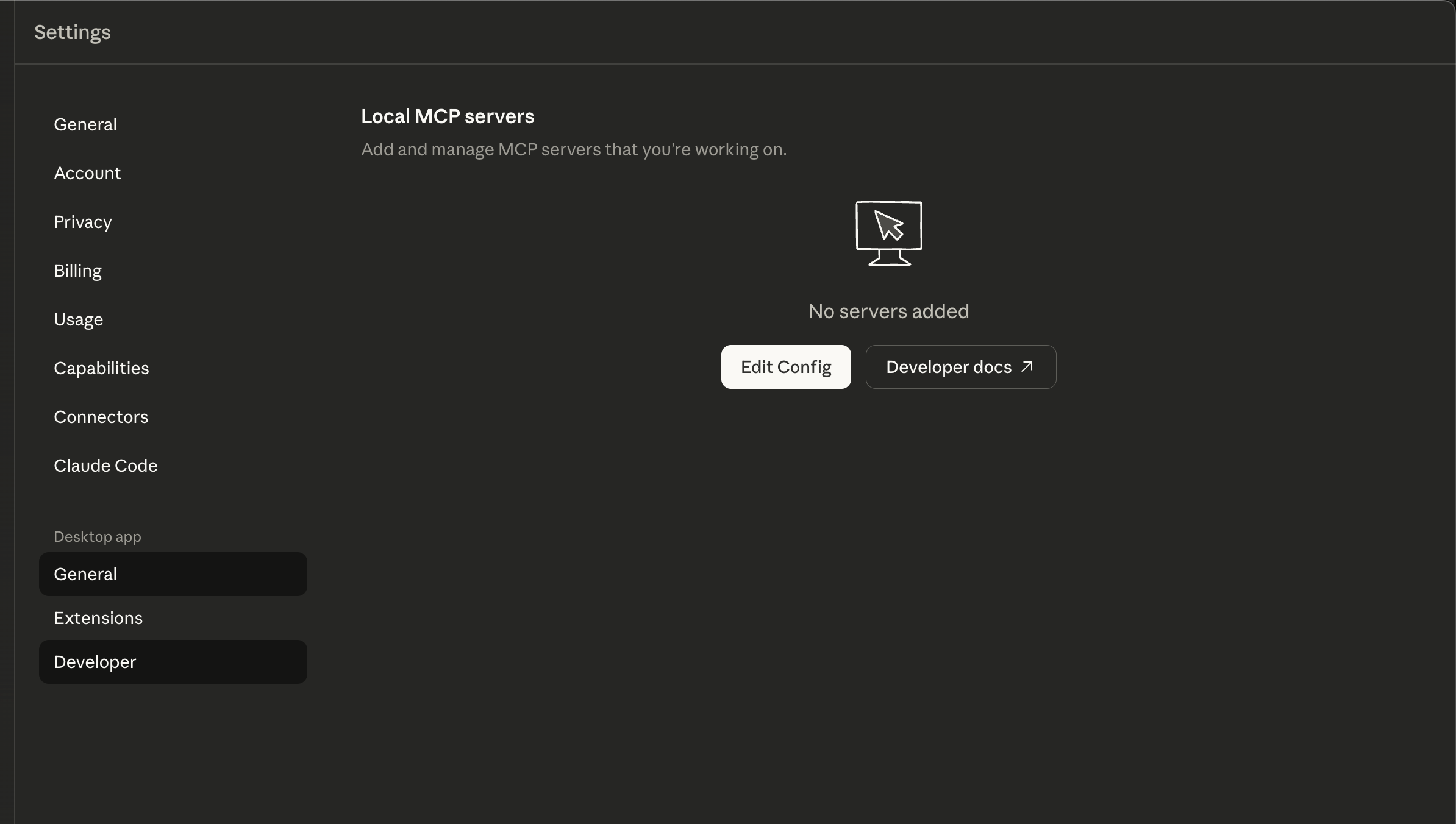 3. Edit the configuration file at:
* macOS: `~/Library/Application Support/Claude/claude_desktop_config.json`
* Windows: `%APPDATA%\Claude\claude_desktop_config.json`
[Documentation](https://docs.anthropic.com/en/docs/claude-code/mcp)
Claude CLI automatically loads MCP servers from `.mcp.json` in your project directory. No extra setup needed.
[Documentation](https://geminicli.com/docs/tools/mcp-server/)
1. Edit the global MCP configuration file at `~/.gemini/settings.json`
3. Edit the configuration file at:
* macOS: `~/Library/Application Support/Claude/claude_desktop_config.json`
* Windows: `%APPDATA%\Claude\claude_desktop_config.json`
[Documentation](https://docs.anthropic.com/en/docs/claude-code/mcp)
Claude CLI automatically loads MCP servers from `.mcp.json` in your project directory. No extra setup needed.
[Documentation](https://geminicli.com/docs/tools/mcp-server/)
1. Edit the global MCP configuration file at `~/.gemini/settings.json`
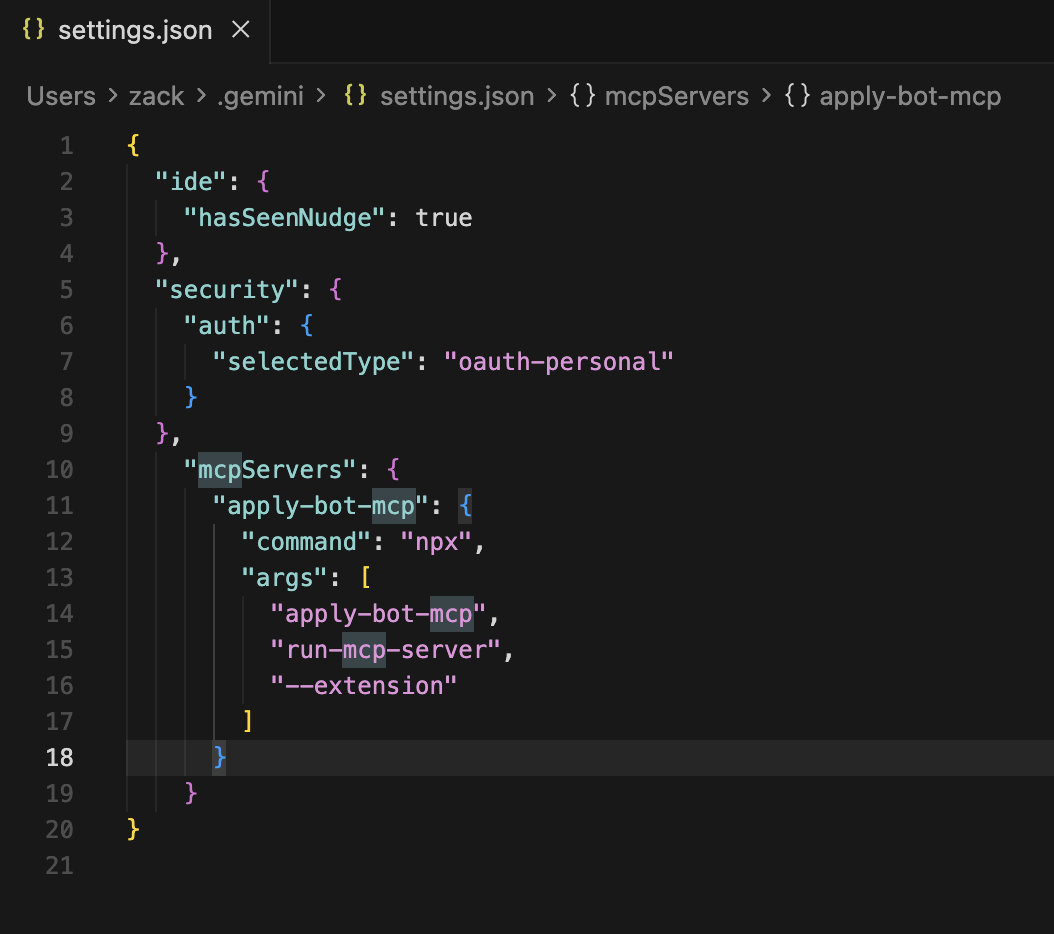 Add the following configuration to your MCP config file:
```json theme={null}
{
"mcpServers": {
"apply-bot-mcp": {
"command": "npx",
"args": [
"apply-bot-mcp",
"run-mcp-server",
"--extension"
]
}
}
}
```
Close and reopen your LLM application for the changes to take effect
In your LLM chat, try asking: "Go to linkedin.com and search for Software Engineer"
If configured correctly, your assistant should be able to open your browser and perform the search automatically.
## Troubleshooting
* Ensure Node.js is installed on your system
* Check that the config file path is correct
* Verify the JSON syntax is valid (no trailing commas)
* Make sure the browser extension is installed and enabled
* Check that you're using a supported browser (Chrome, Edge)
* Try restarting your browser
## Next Steps
Enhance your setup with additional tools and utilities
Add the following configuration to your MCP config file:
```json theme={null}
{
"mcpServers": {
"apply-bot-mcp": {
"command": "npx",
"args": [
"apply-bot-mcp",
"run-mcp-server",
"--extension"
]
}
}
}
```
Close and reopen your LLM application for the changes to take effect
In your LLM chat, try asking: "Go to linkedin.com and search for Software Engineer"
If configured correctly, your assistant should be able to open your browser and perform the search automatically.
## Troubleshooting
* Ensure Node.js is installed on your system
* Check that the config file path is correct
* Verify the JSON syntax is valid (no trailing commas)
* Make sure the browser extension is installed and enabled
* Check that you're using a supported browser (Chrome, Edge)
* Try restarting your browser
## Next Steps
Enhance your setup with additional tools and utilities