> ## Documentation Index
> Fetch the complete documentation index at: https://docs.apply-bot.com/llms.txt
> Use this file to discover all available pages before exploring further.
# Install Browser Extension
> Install the Apply Bot browser extension to get started
## Install the Extension
Get the latest version of Apply Bot browser extension from GitHub Releases.
Click here to download the latest release
## Installation Steps
Visit the [GitHub Releases page](https://github.com/ZackHu-2001/apply-bot-browser-extension/releases/latest) and download the latest version
For Chrome/Edge:
1. Open your browser and navigate to `chrome://extensions/` (or `edge://extensions/`)
2. Enable "Developer mode" in the top right corner
3. Click "Load unpacked" and select the downloaded extension folder
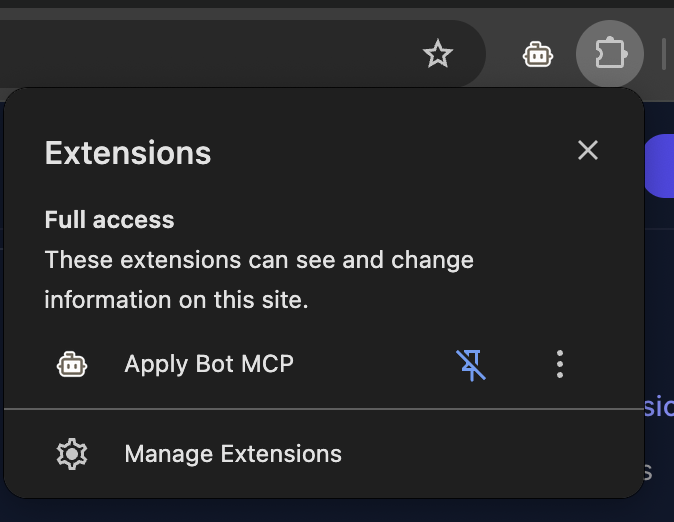
 Look for the Apply Bot icon in your browser toolbar to confirm successful installation
 ## Next Steps
Set up the MCP server to enable AI-powered job application assistance
## Next Steps
Set up the MCP server to enable AI-powered job application assistance