> ## Documentation Index
> Fetch the complete documentation index at: https://docs.apply-bot.com/llms.txt
> Use this file to discover all available pages before exploring further.
# Setup Toolkit
> Setup tools and utilities to enhance your Apply Bot experience
View source code on GitHub
## Installation
```bash theme={null}
git clone https://github.com/ZackHu-2001/apply-bot-toolkit.git
cd apply-bot-toolkit
```
```bash theme={null}
npm install
```
```bash theme={null}
npm start
```
The toolkit dashboard will be available at `http://localhost:5173`
## Available Tools
### Dashboard
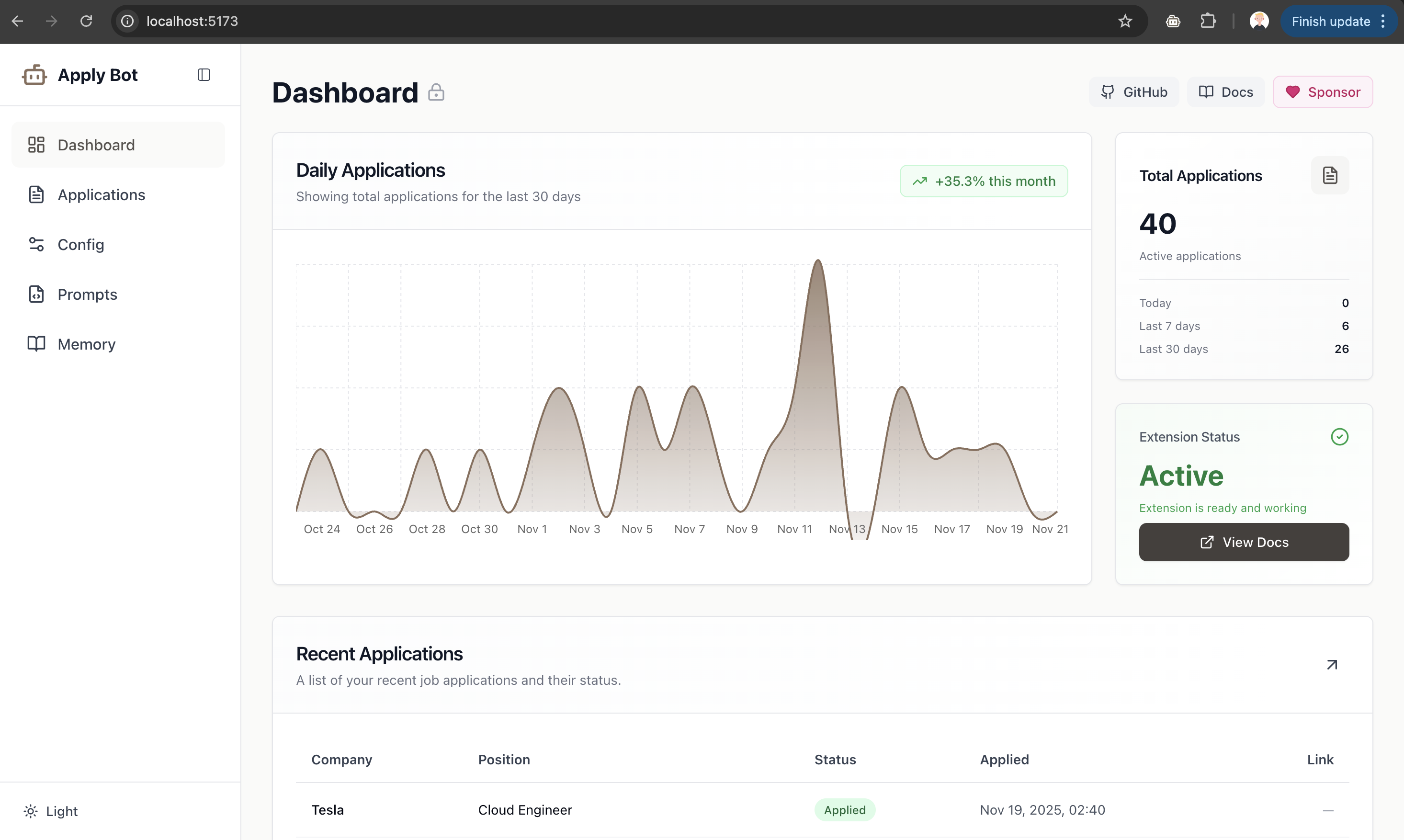
Overview of your job application activity with statistics and recent applications at a glance.
 ### Application Tracker
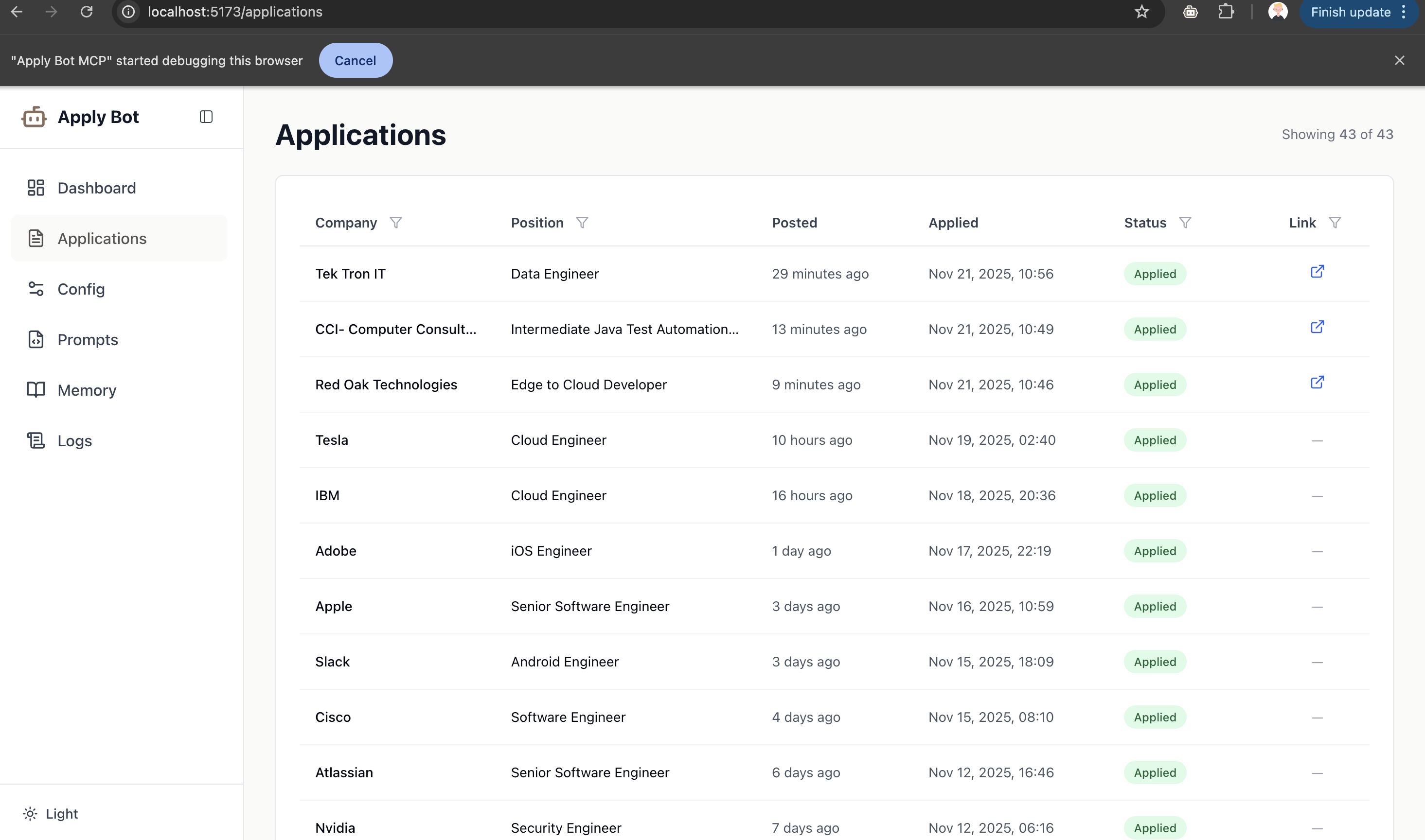
Track all your job applications in one place:
* View application history with company, job title, and status
* Filter by date, status, or company
* Identify applications that need human intervention
### Application Tracker
Track all your job applications in one place:
* View application history with company, job title, and status
* Filter by date, status, or company
* Identify applications that need human intervention
 ### Configuration
Set up your application profile:
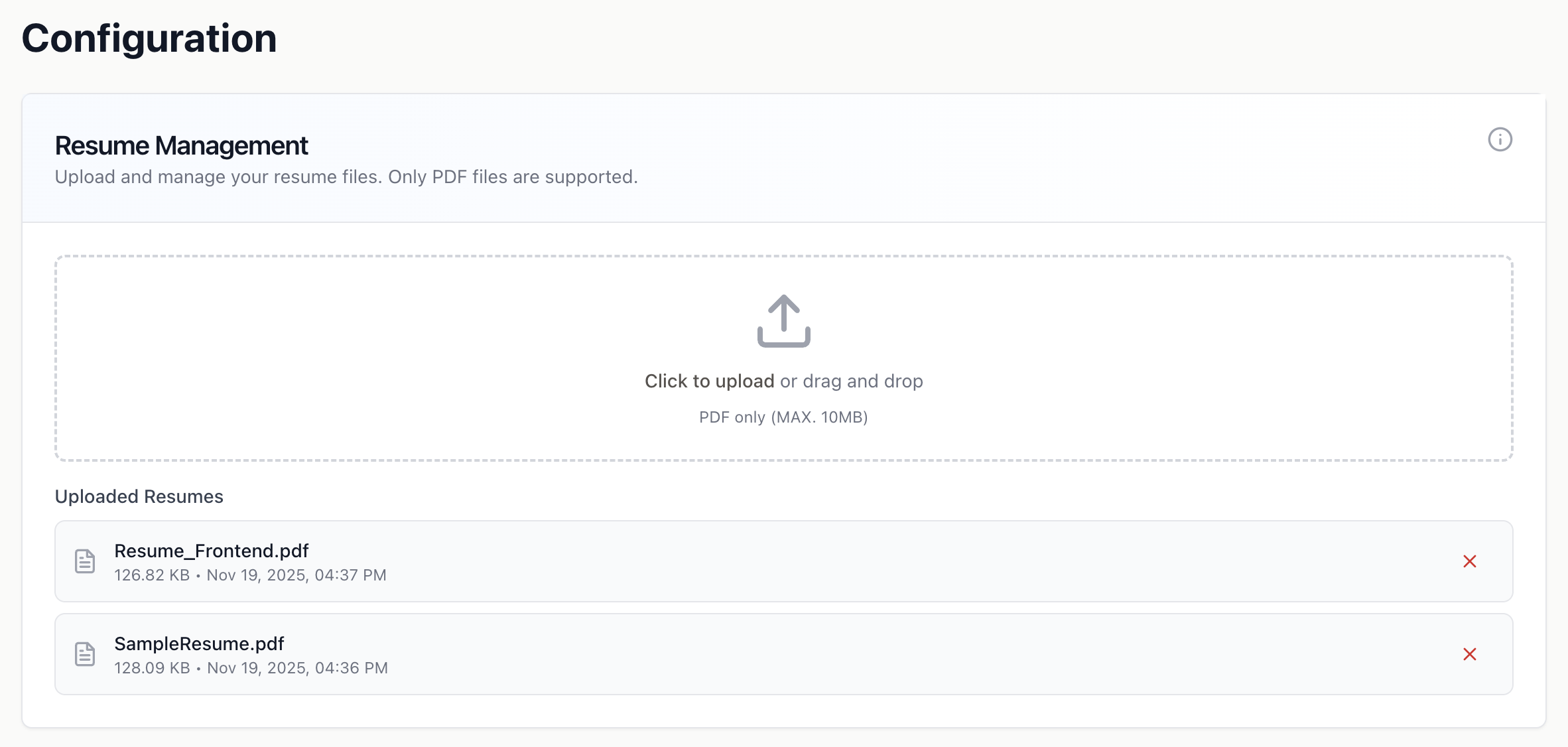
* **Resume Upload**: One-click upload your resume for AI to reference
### Configuration
Set up your application profile:
* **Resume Upload**: One-click upload your resume for AI to reference
 * **Job Filters**: Configure filters for job search (location, salary, work type, tech stack)
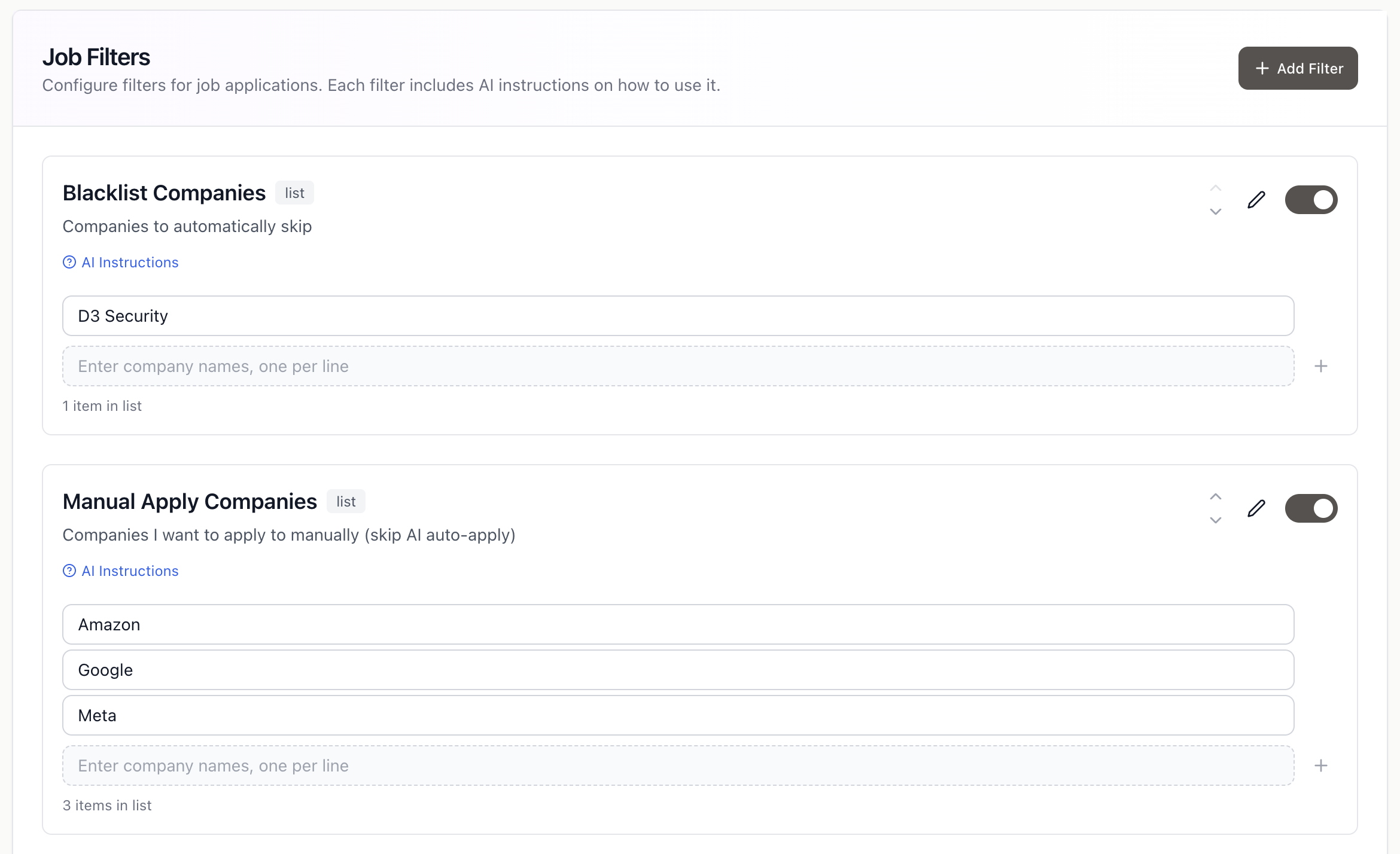 * **Preferences**: Tell the LLM your preferences including company whitelist/blacklist and application requirements
### Memory
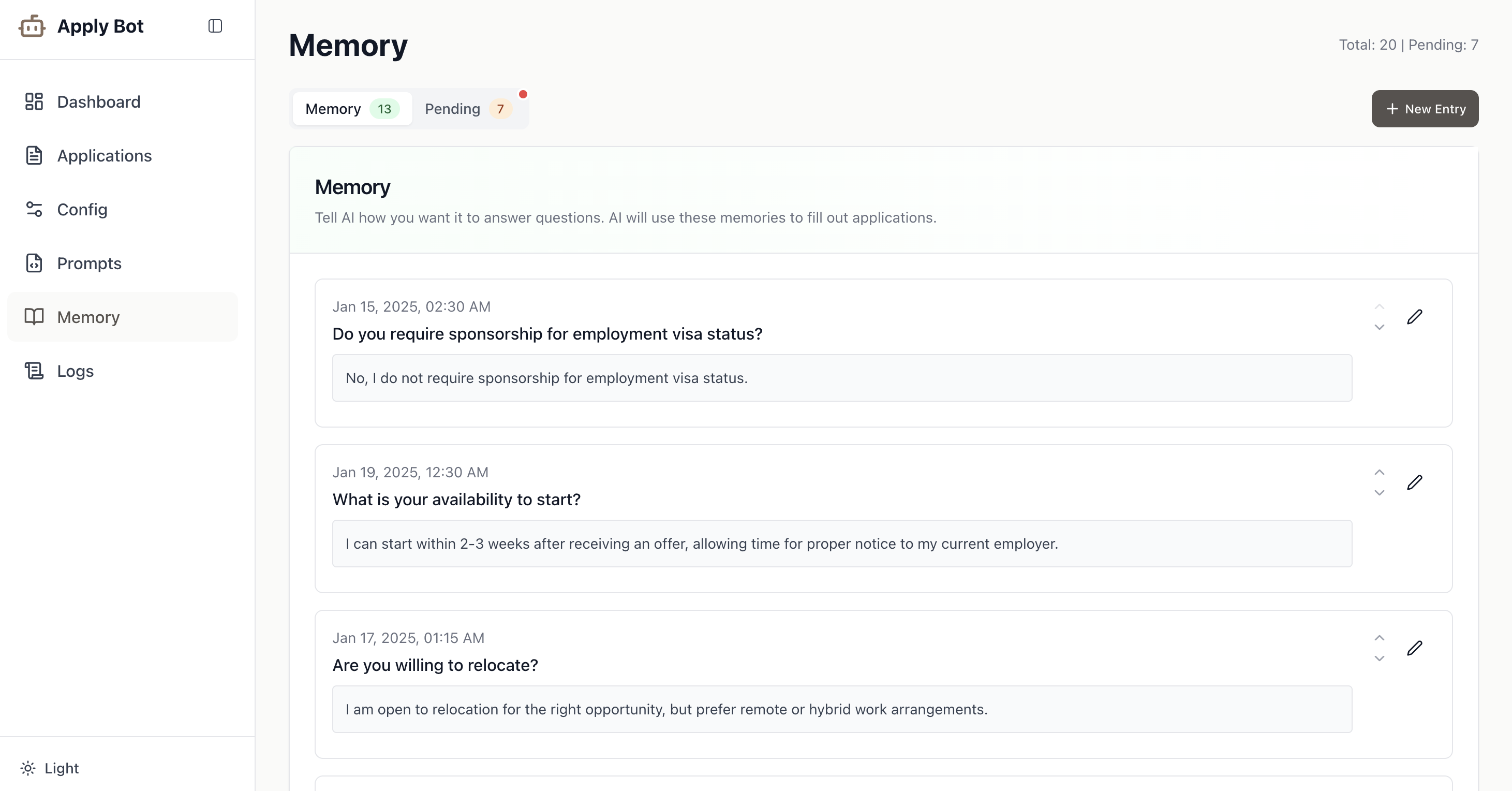
* **Custom Answers**: Tell AI how you want it to answer common application questions. AI will use these memories to fill out applications consistently across all your job applications.
* **Preferences**: Tell the LLM your preferences including company whitelist/blacklist and application requirements
### Memory
* **Custom Answers**: Tell AI how you want it to answer common application questions. AI will use these memories to fill out applications consistently across all your job applications.
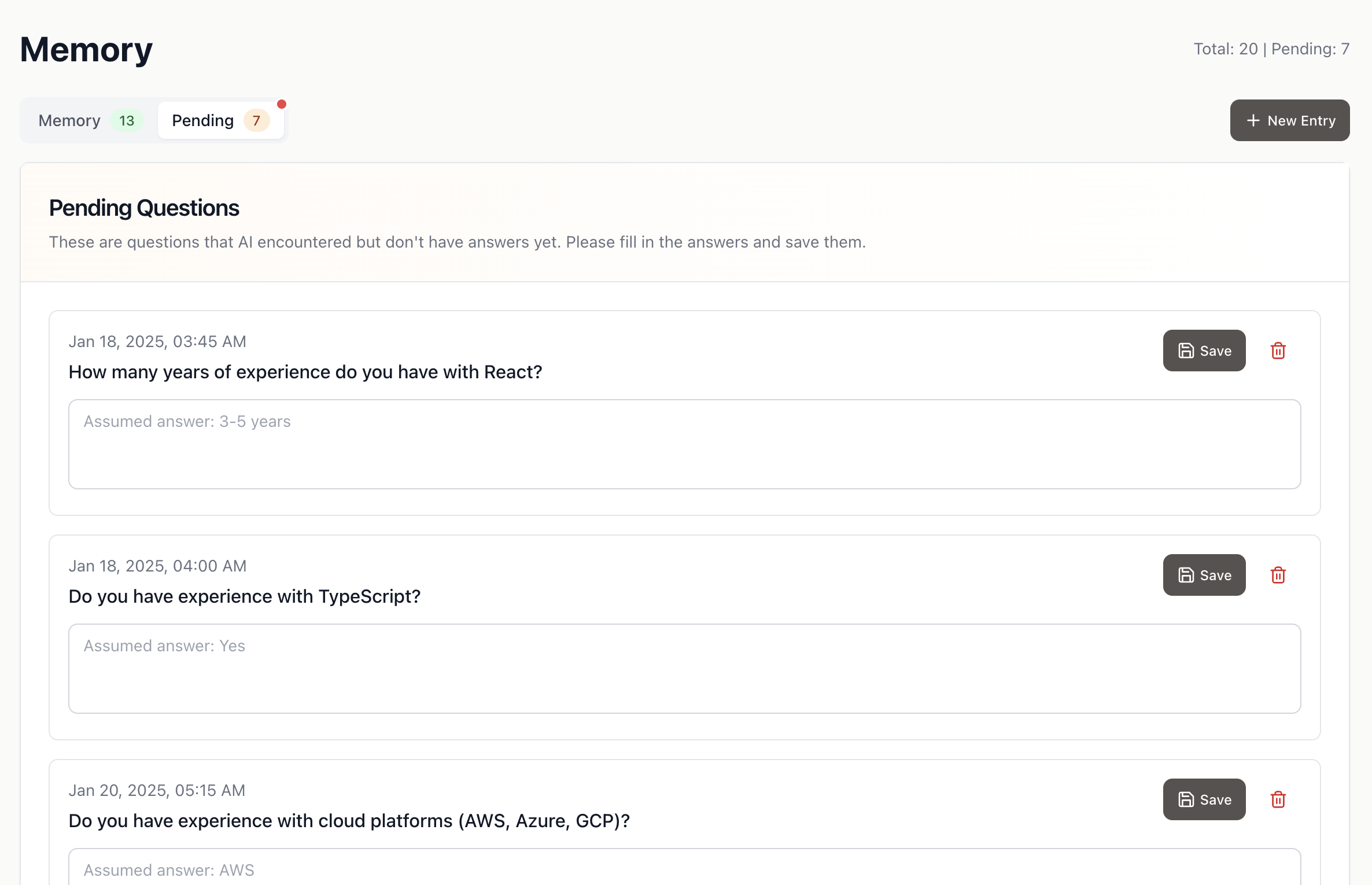
 * **Pending Questions**: Questions that AI encountered during applications but doesn't have answers for yet. Review these questions, fill in your preferred answers, and save them for future use.
 ### Prompt
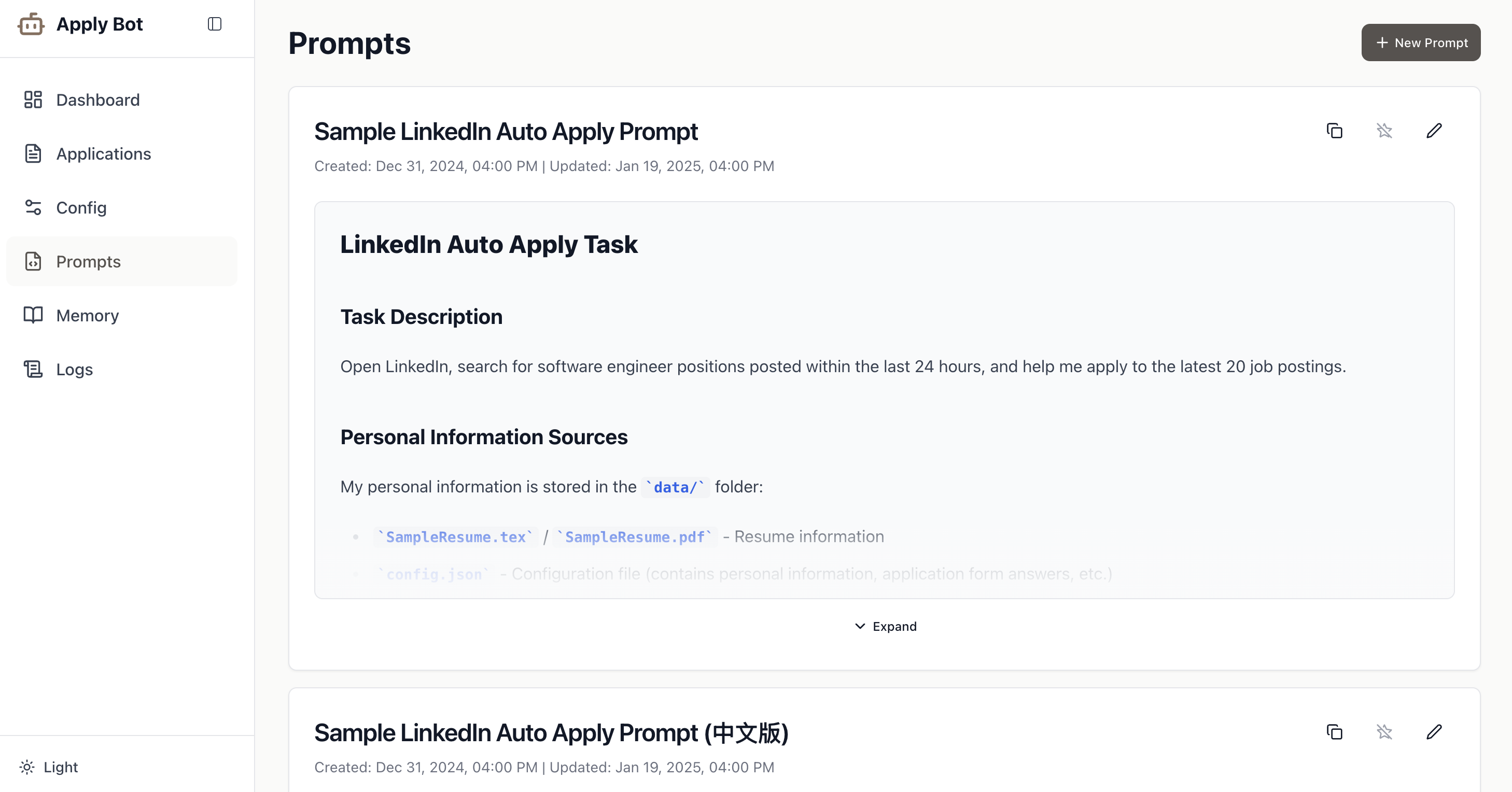
Customize prompts to control how the AI handles your applications:
* Sample prompt template for LinkedIn auto-apply
* Detailed instructions for form filling behavior
* Rules for recording applications and handling edge cases
* Optimize the prompt based on your specific needs
### Prompt
Customize prompts to control how the AI handles your applications:
* Sample prompt template for LinkedIn auto-apply
* Detailed instructions for form filling behavior
* Rules for recording applications and handling edge cases
* Optimize the prompt based on your specific needs
 ## Next Steps
See Apply Bot in action with real-world examples
## Next Steps
See Apply Bot in action with real-world examples