
What is MCP?
Model Context Protocol (MCP) enables your AI assistant to interact with the Apply Bot extension, allowing it to help you fill out job applications automatically.Prerequisites
Before configuring MCP, make sure you have:- Node.js installed (recommended: LTS version 24.11.0)
- Installed the Apply Bot browser extension
- An LLM that supports MCP (Cursor, Claude Desktop, Claude CLI, Gemini etc.)
Configuration Steps
1
Locate Your MCP Configuration
Find your LLM’s MCP configuration file:
Cursor
Cursor
Documentation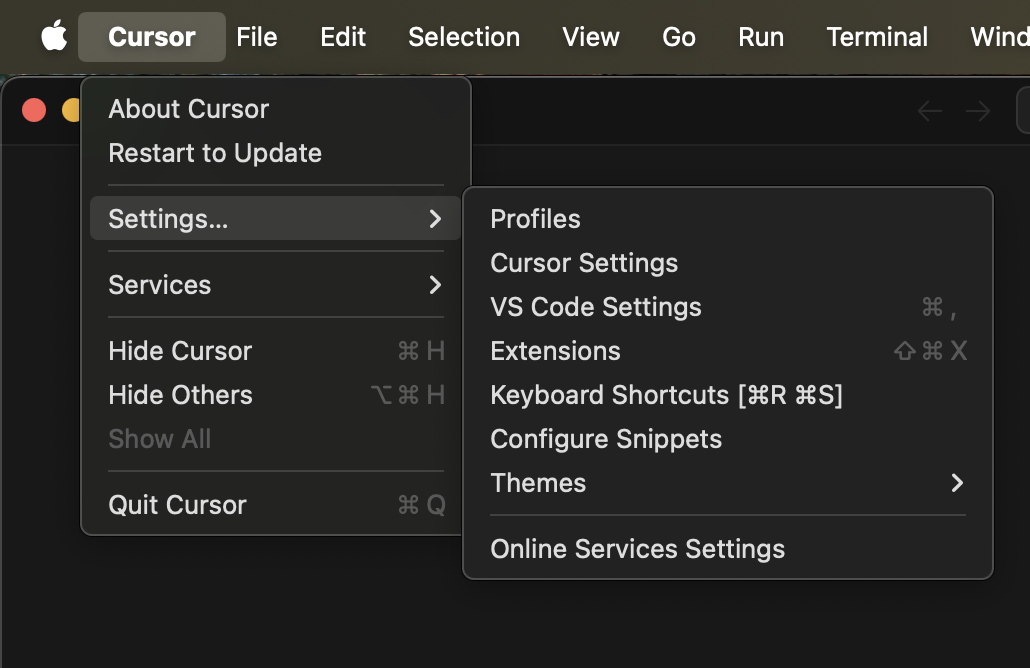
- Click on Cursor menu and select Settings…
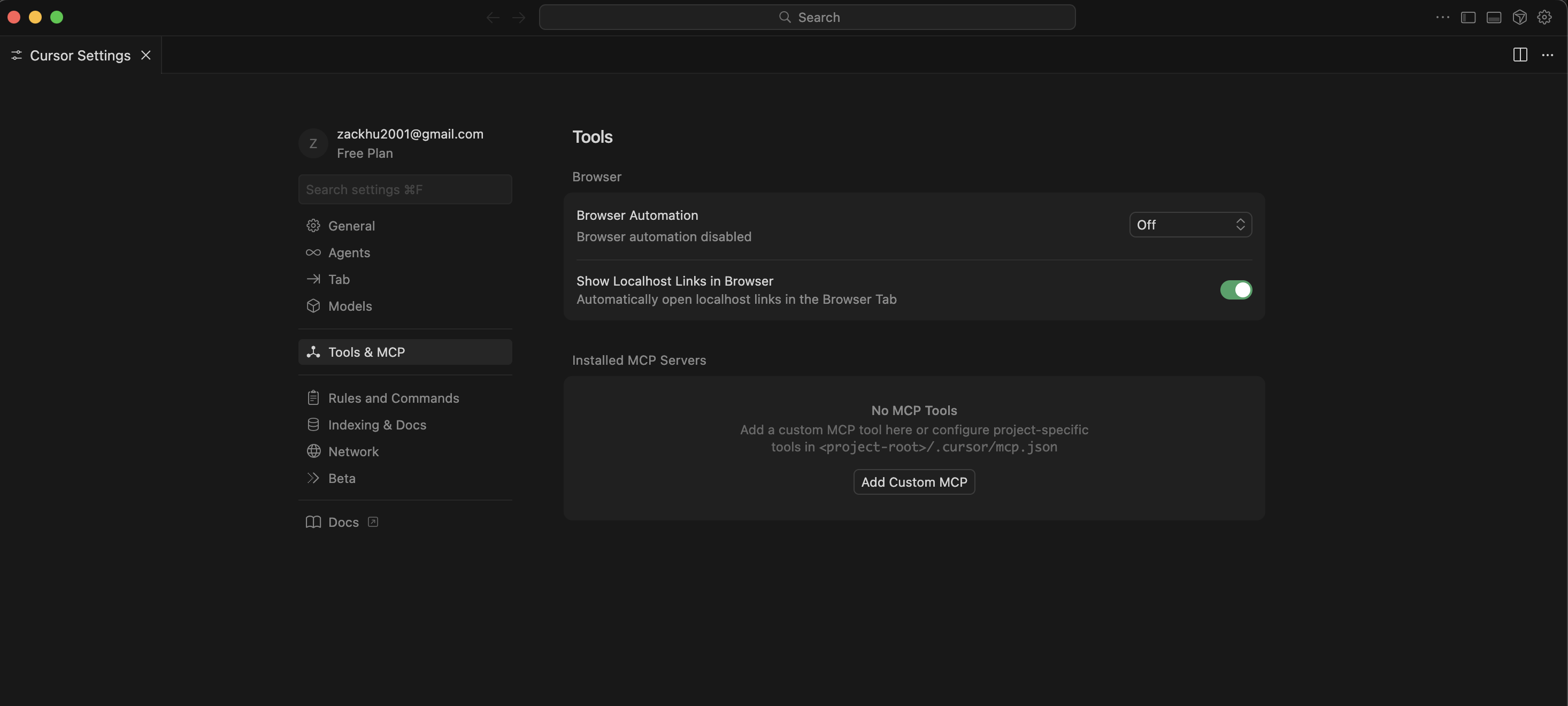
- Navigate to Tools & MCP in the left sidebar, then click Add Custom MCP
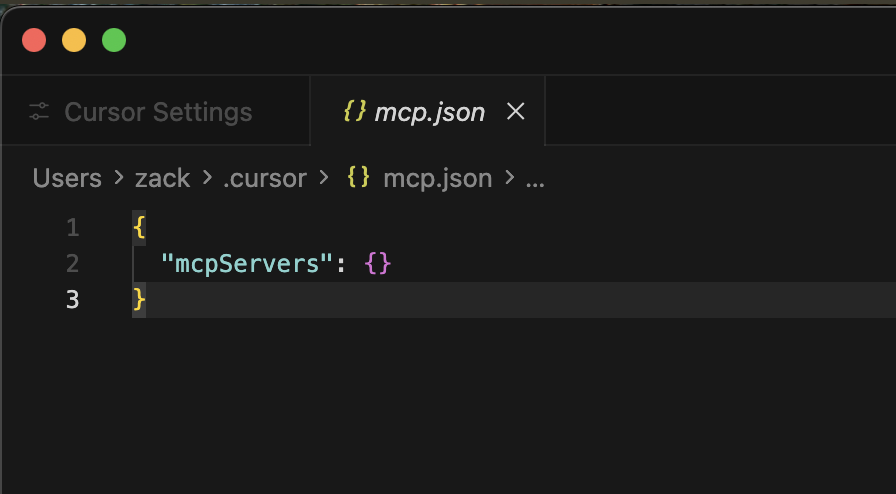
- Edit the global MCP configuration file at
~/.cursor/mcp.json- For global configuration (all projects):
~/.cursor/mcp.json - For project-specific configuration:
<project-root>/.cursor/mcp.json
- For global configuration (all projects):
Claude Desktop
Claude Desktop
Documentation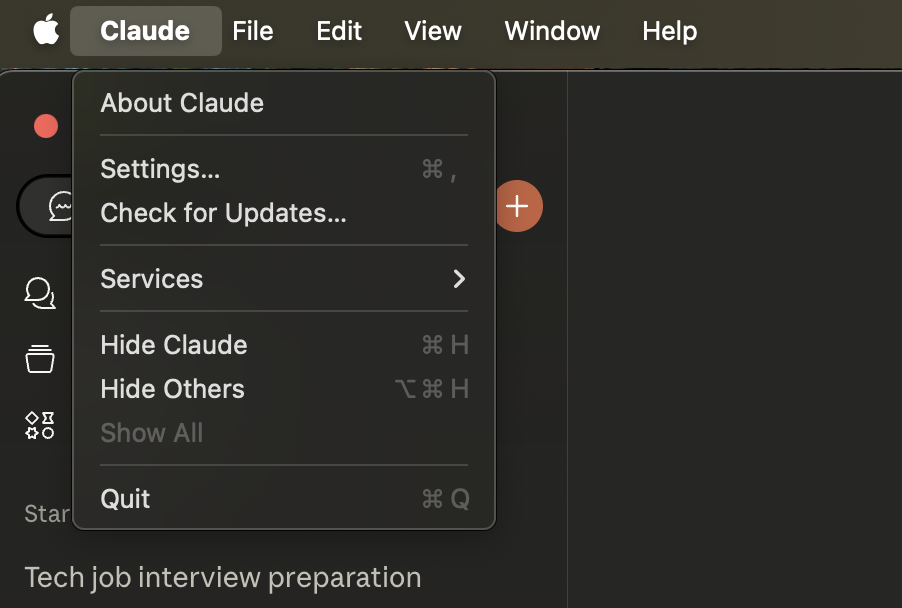
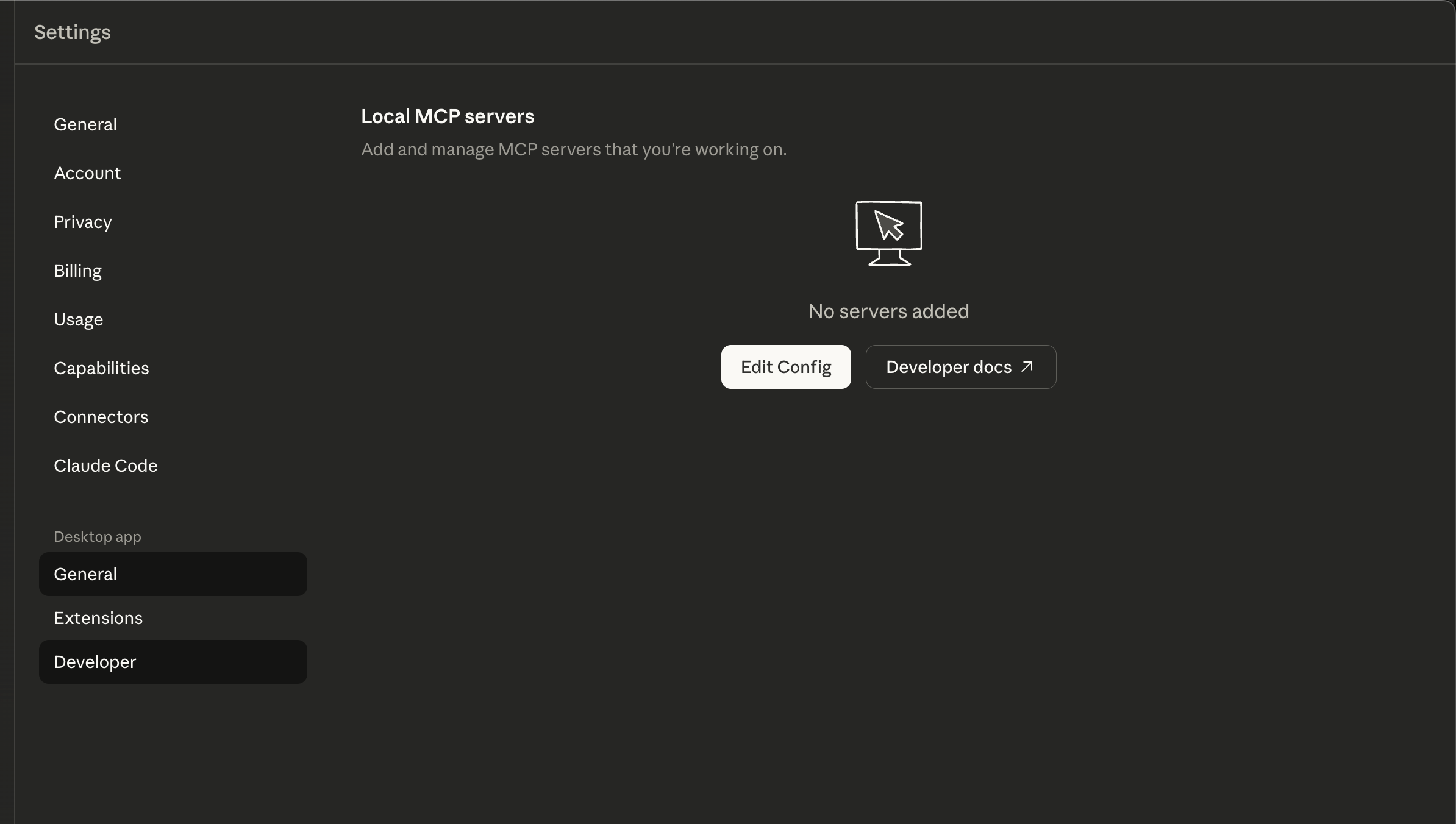
- Click on Claude menu and select Settings…
- Navigate to Developer in the left sidebar under Desktop app, then click Edit Config
- Edit the configuration file at:
- macOS:
~/Library/Application Support/Claude/claude_desktop_config.json - Windows:
%APPDATA%\Claude\claude_desktop_config.json
- macOS:
Claude CLI
Claude CLI
DocumentationClaude CLI automatically loads MCP servers from
.mcp.json in your project directory. No extra setup needed.Gemini
Gemini
2
Add Apply Bot MCP Server
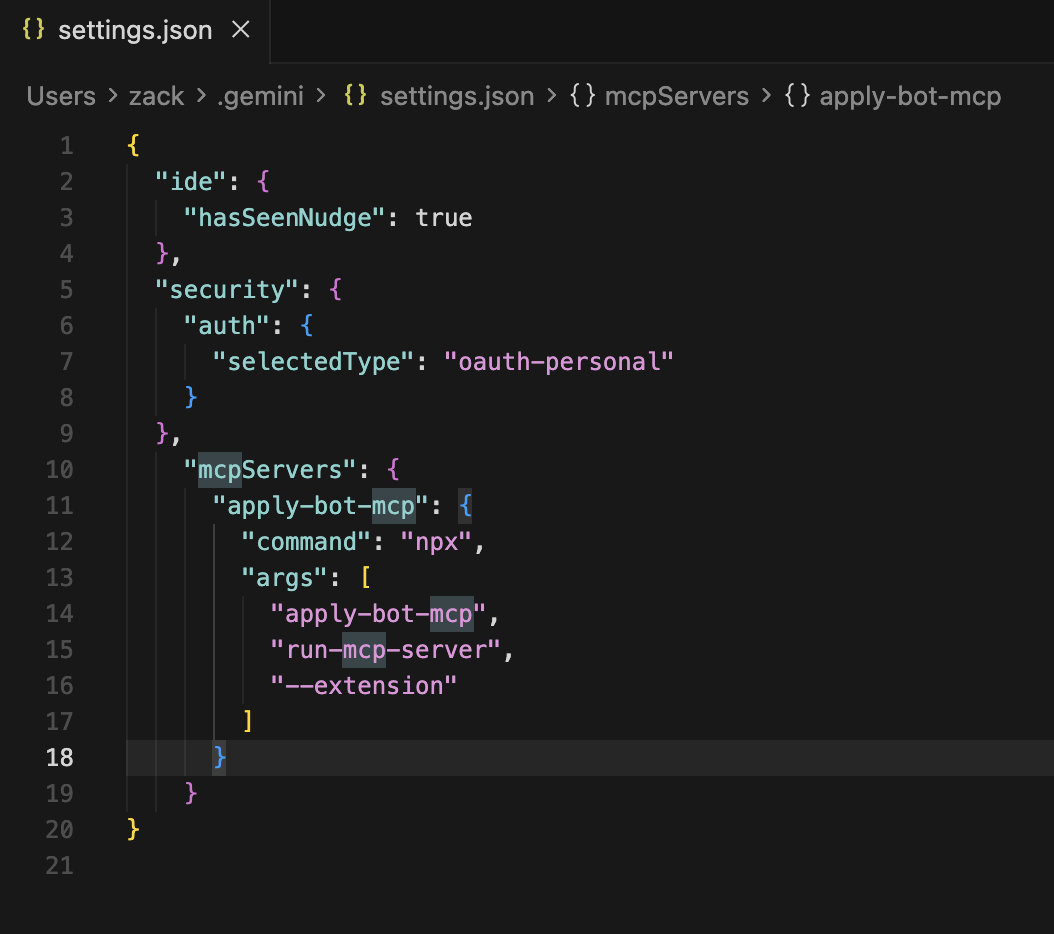
Add the following configuration to your MCP config file:
3
Restart Your LLM
Close and reopen your LLM application for the changes to take effect
4
Verify Connection
In your LLM chat, try asking: “Go to linkedin.com and search for Software Engineer”If configured correctly, your assistant should be able to open your browser and perform the search automatically.
Troubleshooting
MCP server not connecting
MCP server not connecting
- Ensure Node.js is installed on your system
- Check that the config file path is correct
- Verify the JSON syntax is valid (no trailing commas)
Extension not responding
Extension not responding
- Make sure the browser extension is installed and enabled
- Check that you’re using a supported browser (Chrome, Edge)
- Try restarting your browser
Next Steps
Setup Toolkit
Enhance your setup with additional tools and utilities